
How to Summarize a PDF With AI Without Missing the Important Parts
A practical AI PDF summary workflow with page checks, prompts, and verification steps for reports, papers, manuals, and long documents.


Updated July 15, 2026
AI can summarize a PDF quickly, but a useful summary takes more than uploading a file and typing “summarize this.” Start by asking for the document’s structure. Then ask focused questions, require page references, and check the important claims against the original pages before you use them.
It takes a few extra minutes. Those minutes are the difference between a convenient skim and a summary you can rely on.
This workflow works for research papers, business reports, manuals, policy documents, and other text-heavy PDFs. It is less reliable for scans with poor optical character recognition, complicated charts, handwritten notes, or documents where one missed clause could change the meaning.
Why one-click PDF summaries miss things
A PDF is a container, not a clean stream of prose. It can hold selectable text, scanned pages, footnotes, tables, charts, appendices, and page headers that repeat hundreds of times. Two files with the same page count may be completely different jobs for an AI model.
Long context creates another problem. A model may accept a large document without using every part of it equally well. The paper Lost in the Middle, published in Transactions of the Association for Computational Linguistics, found that model performance could drop when relevant information appeared in the middle of a long input rather than near the beginning or end. Models have improved since that study, but the practical lesson still holds: a large context window does not guarantee careful coverage of every page.
Document tools also process files in different ways. OpenAI’s file upload guidance explains that some document text may enter the model’s context while other parts are retrieved through search. Anthropic’s PDF documentation says its supported models can analyze text and visual material in PDFs, while noting limits around dense files, page counts, request size, and vision accuracy.
So “the PDF uploaded successfully” does not mean “the model inspected every sentence, table, and footnote.”
Start by checking what kind of PDF you have
Before asking for a summary, open the file and inspect it yourself for a minute.
Check these points:
- Can you select and copy the text, or is each page a scan?
- Does the argument live in prose, tables, charts, or all three?
- Are the page numbers printed in the document different from the PDF viewer’s page count?
- Is there an executive summary, methodology section, appendix, or glossary?
- Does the file contain private customer, employee, financial, or legal information?
If text selection produces nonsense, the file probably needs better OCR before summarization. If the important evidence is visual, use a tool and model that can inspect page images, then verify its reading of labels, legends, and small numbers. Anthropic explicitly notes that PDF analysis inherits the limitations of vision models. OpenAI likewise documents different handling for text documents, images, spreadsheets, and PDFs.
For sensitive files, read the service’s data handling and retention terms before uploading. A good summary is not worth sending confidential material to a tool that your organization has not approved.
Use a five-step AI PDF summary workflow
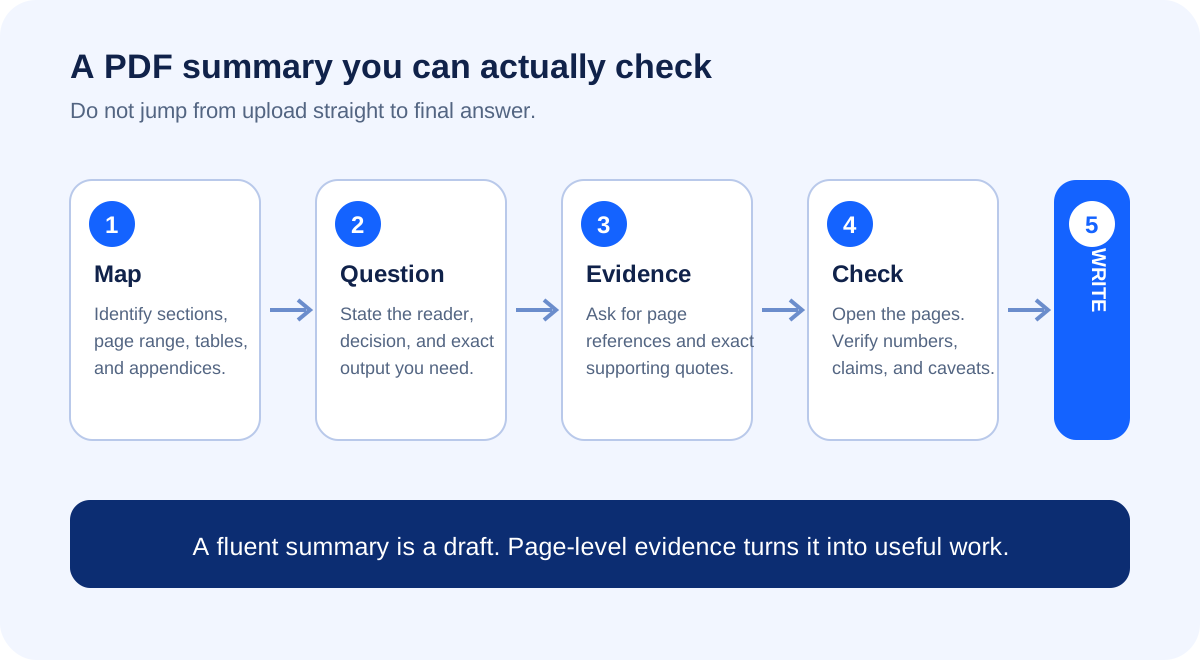
1. Map the document before summarizing it
Do not ask for the final summary first. Ask the model to show that it understands the document’s shape.
Map this PDF before summarizing it.

List:
- the title and stated purpose
- the main sections in order
- the page range for each section
- every table, chart, and appendix that may affect the conclusions
- any pages that appear unreadable or incomplete

Do not interpret the document yet.
Compare that map with the table of contents and a few pages near the middle and end. If the model misses an appendix or invents a section, stop and fix the extraction problem. There is no point polishing a summary built on an incomplete read.
2. Tell the model what the summary is for
“Summarize this PDF” leaves the model to decide what matters. Your goal should make that decision.
A founder reviewing a market report needs different details from a student reading a paper. A support lead reading a product manual cares about procedures and exceptions. Someone comparing vendor proposals needs commitments, exclusions, and evidence.
Use a prompt like this:
I am reading this report to decide whether [decision].

Write a summary for [reader] that covers:
- the document's main claim
- evidence that directly affects the decision
- important limitations or counterarguments
- actions, dates, or commitments stated in the PDF

Keep background material brief. Do not add facts from outside the document.
That prompt gives the model a job instead of asking for a generic book report.
3. Ask for page-level evidence
Every important point should be easy to trace back to the file.
For each major claim in your summary, include:
1. the PDF page number
2. a short exact quote or table reference that supports it
3. whether the point is stated directly or inferred

If you cannot find support in the PDF, leave the claim out.
Page references are not proof by themselves. Models can cite the wrong page or attach a real quote to the wrong conclusion. Still, references make verification much faster because you know where to look.
If the PDF has printed page numbers that differ from the viewer, ask the model to report both. For example: “printed page 12, PDF page 18.”
4. Test the weak spots, not just the headline
Most summaries capture the headline. The useful details often hide in the methodology, footnotes, definitions, and exceptions.
Ask targeted follow-ups:
What evidence would weaken the report's main conclusion?
Quote the relevant passages and give page references.
List every limitation stated by the authors.
Separate stated limitations from limitations you infer.Check the executive summary against the body and appendix.
Where does the detailed evidence add nuance or conflict with it?For a table-heavy report, ask the model to extract a small table with exact values and page references. Then compare several cells with the original. If it struggles with a simple sample, do not trust a larger extraction.
5. Create the final summary only after checking the evidence
Once you have verified the high-impact claims, ask for the finished version.
Using only the claims we verified, write the final summary.

Use this structure:
- direct answer in 2 sentences
- 5 to 8 key findings with page references
- important limitations
- open questions
- recommended next reading inside the PDF

Remove any claim that we did not verify.
The result will usually be shorter than the first one-click summary. That is a good sign. You have removed unsupported detail and made the remaining points easier to check.
Match the prompt to the document
Different PDFs need different questions.
| Document | Ask the AI to extract | Check yourself |
|---|---|---|
| Research paper | research question, method, sample, findings, limitations | abstract versus results, table values, stated limitations |
| Business report | main conclusion, evidence, assumptions, recommendations | dates, denominators, chart labels, appendix notes |
| Product manual | prerequisites, steps, warnings, exceptions | version number, exact sequence, warning language |
| Policy document | scope, definitions, obligations, exclusions, effective date | defined terms, exceptions, amendments, jurisdiction |
| Proposal | deliverables, timeline, dependencies, exclusions | totals, deadlines, ownership, terms that affect scope |
AI can help you locate and organize these details. It should not make the final legal, medical, financial, or safety judgment for you.
When to split a long PDF
Do not split every document by default. A coherent paper may be easier to understand as a whole. Splitting helps when the upload fails, the model overlooks sections, the PDF is unusually dense, or you need careful coverage of a long appendix.
Split along real boundaries, such as chapters or report sections, rather than arbitrary 20-page chunks. Summarize each section with the same template, then ask for a synthesis that names agreements, contradictions, and repeated evidence.
A useful sequence is:
- Create a map of the full document.
- Analyze each major section separately.
- Verify the claims that matter.
- Build a cross-section summary from the checked notes.
This takes longer than one click, but it reduces the chance that a central section disappears inside a large upload.
Compare models when the document matters
Different models may extract, explain, and qualify the same PDF differently. That does not mean you need to run every document through several models. For a low-stakes skim, one capable model is usually enough.
A second model is useful when the PDF informs a costly decision, contains complicated visual evidence, or produces a summary that feels suspiciously neat. Keep the question and output format the same. Then compare which claims each model included, which pages they cited, and where they disagreed. Our guide to choosing more than one AI model explains when that extra pass is worth the effort.
Do not treat agreement as verification. Two models can repeat the same mistake. Use disagreement to find the pages that deserve a closer look. This is the same principle behind reducing AI hallucinations with narrower questions and source checks.
A reusable PDF summary prompt
Copy this version when you need a solid first pass:
Read the attached PDF for this purpose: [describe your decision or task].
The reader is: [describe the reader].

First, map the document's sections and page ranges. Note any unreadable pages.
Then write a concise summary using only information in the PDF.

For every major claim:
- cite the PDF page
- include a short supporting quote or table reference
- label it as stated fact, author interpretation, or your inference

Include important limitations, exceptions, and conflicting evidence.
Do not fill gaps with outside knowledge.
End with three questions I should investigate in the original document.
This prompt cannot force a model to be correct. It does make errors easier to notice.
Keep the document and the conversation together
The annoying part of PDF work is often the tool juggling. You upload a report in one app, move the useful passages into another, and lose the thread when you want a second model to check the answer.
OrbiChat keeps the document, conversation, and model choice in one workspace. You can start with one model, switch mid-thread, and compare a second reading without rebuilding the prompt in another tab. The goal is one checked, useful summary with less copy-pasting, not a pile of competing summaries.
FAQ
Can AI summarize any PDF?
AI can work well with clean, text-based PDFs, but results vary. Scanned pages may need OCR. Small chart labels, complex tables, handwriting, password protection, and very dense files can cause errors or prevent processing.
What is the best prompt for summarizing a PDF?
State the purpose and reader, ask for a document map first, require page references and short supporting quotes, separate direct claims from inference, and request limitations. The reusable prompt above covers those steps.
How do I know whether an AI PDF summary is accurate?
Check the main claims against the cited pages. Verify numbers, dates, exceptions, and conclusions in the original file. Test at least one table or detailed section rather than checking only the abstract or executive summary.
Should I use AI to summarize a research paper?
AI is useful for mapping a paper, explaining terminology, and locating methods, findings, and limitations. Read the relevant sections yourself before citing the paper or relying on its conclusions. A summary cannot replace the source.
Is it better to summarize a long PDF in sections?
Sometimes. Split the file when the model misses sections, the document is too large or dense, or appendices need separate attention. Use meaningful section boundaries and synthesize only after checking each section.
Can comparing two AI models verify a PDF summary?
No. Comparison can reveal omissions and disagreements, but two models may share the same error. Verification means opening the original PDF and checking the supporting pages.
Media credit: cover photograph by Vitaly Gariev on Unsplash, used under the Unsplash License. Workflow diagram by OrbiChat.